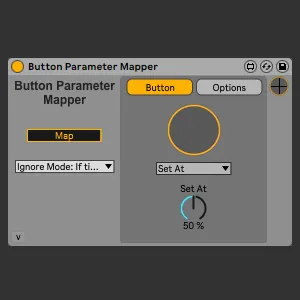
Button Parameter Mapper
The Button Parameter Mapper allows you to dramatically expan...
- Type
- MIDI Effect
- Author
- NickHydeViolin
- Version
- 2.0
- License
- Commercial
- Live version
- 10.1.18
- Max version
- 8.1.5
- Downloads
- 0
- Updated
- 2024-03-28
Button Parameter Mapper is a MIDI Effect for Ableton Live by NickHydeViolin, distributed as a commercial (paid) device. It targets Live 10.1.18 and Max 8.1.5. Published 2024-03-28. 3 user comments below.
New to Max for Live? Read what MIDI Effects do, what the Commercial license means, how to install a device.
Description
The Button Parameter Mapper allows you to dramatically expand the key & MIDI mapping capabilities in Ableton Live.
Video Demonstrations: https://www.youtube.com/watch?v=3_yoQn6qVrM&list=PLfGQijcb8CSljb6m1K1V_bMYXJQt2e9BX
Map multiple buttons to the same parameter, map the same button on a MIDI controller to multiple different parameters across different tracks, choose whether the button sets, increments, toggles, randomizes, or moves the parameter over time.
Set - When the button is pushed, set the parameter at a specific value
Increment - Increase or decrease the parameter from it's current value
Options:
- Stop At Min/Max: If the parameter is set to increment by a larger amount than possible (eg increasing 15% when the current value is at 95%), increase the parameter to 100% and stop
- Stop Before Min/Max: If the parameter is set to increment by a larger amount than possible (eg increasing 15% when the current value is at 95%), do not increase or decrease the value
- Loop Mode: If the parameter is set to increment by a larger amount than possible (eg increasing 15% when the current value is at 95%), set the value to 0%
Toggle - Toggle a parameter between two values
Note: If a parameter is currently set to neither value, the button will prioritize the left side
Random - Set the parameter at a random value
Options:
Repeating vs. Non-repeating random
Time - Move a parameter from X to Y over Z time
Options:
Custom or Current - Have the X and Y start time be static & unchanging, or have the movement of a parameter's start or end time follow the parameter's current value
Time or Bars - Set the time it takes for a parameter move in seconds or based on live's current tempo
Other Options:
Disable if Track Not Selected: This option allows the current button to parameter mapping to only occur when the track the device is loaded onto is selected. This allows you to load multiple instances of this device across multiple tracks and reuse key/MIDI mappings across different tracks.
If Time Moving Enable/Disable: If a time action is currently moving the button, choose whether to enable or disable the time button. Enabling it will allow you to immediately restart a button's time action if it's in progress, disabling it allows you to be extra sure you don't make a mistake during a live performance situation
Quantization: Choose to delay a button's action until the next global 1, 2, 4, 8, or 16 bar downbeat (following live's transport).
Ignore Vs. Allow Mode: Similar to the "If Time Moving Enable/Disable" option within a single button, but this applies to all buttons across the entire device. With ignore mode on, when a button performs a time action, all other buttons are effectively disabled until the time action stops. When allow mode is on, when a button performs a time action, all other buttons are effectively enabled, and hitting the button will cancel the time action.
The Map Button works similar to other map buttons on other Max for Live stock devices like the LFO, Envelope Follower, etc.
Comments (3)