MIDI Note Historian
Log and display incoming MIDI note data, providing a clear h...
- Type
- MIDI Effect
- Author
- landonoftheguitar
- Version
- 1.0.1
- License
- Commercial
- Live version
- 12.0.5
- Max version
- 8.6.2
- Downloads
- 0
- Updated
- 2025-08-27
MIDI Note Historian is a MIDI Effect for Ableton Live by landonoftheguitar, distributed as a commercial (paid) device. It targets Live 12.0.5 and Max 8.6.2. First published 2025-08-04, last updated 2025-08-27.
New to Max for Live? Read what MIDI Effects do, what the Commercial license means, how to install a device.
Description
Log and display incoming MIDI note data, providing a clear history of your performances. The device tracks note-on and note-off messages, their velocities, and their order of arrival.
Demo Video: https://youtu.be/lbJuUtR4yp0
New version available now 1.0.1 - fixed issue where intial state was not set properly and also enabled use of the slider bar.
Display
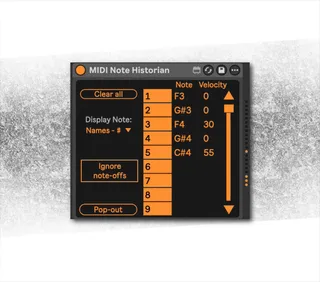
The central part of the device features a list that displays MIDI data. When a new note is played, it's assigned to the next available slot in the list. Subsequent hits of that same note are then displayed in the same slot. For example, if the first note to be played is a C3, all future C3s will appear in the slot labeled "1", providing a dedicated history for that specific note.
Controls
Clear All: Resets the display, clearing all recorded MIDI note history from the list.
Note Name / Note Number: This button toggles the format of the displayed notes. You can choose to view them as standard note names (e.g., C#3 or Db3) or as their numerical MIDI values (e.g., 60, 67).
Ignore Note-Offs: When activated, the device will only display MIDI note-on messages (velocity > 0). It retains the last velocity for each note, effectively ignoring note-off messages and providing a persistent record of the most recent velocity for a played note.
Pop-Out Window: Opens a new, dedicated window that displays all 128 possible MIDI note slots. This provides a comprehensive overview of all incoming MIDI data across the entire range of notes.
Close Pop-Out: This button appears on the main device interface when the pop-out window is open. Clicking it closes the pop-out window and returns the display to the original device.
Stay On Top: This button is located within the pop-out window. When enabled, it keeps the pop-out window visible and floating on top of the Ableton Live application, even if Live is not the active window. This allows you to monitor MIDI data while interacting with other programs.
Play