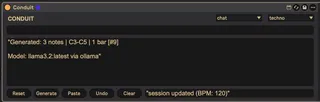
Conduit - local AI MIDI Generator
Conduit connects Ableton Live to a local AI running on your ...
- Type
- MIDI Effect
- Author
- jordanaftermidnight
- Version
- 1.0
- License
- Attribution
- Live version
- 12.3.5
- Max version
- 9.1.2
- Downloads
- 168
- Updated
- 2026-04-13
Conduit - local AI MIDI Generator is a MIDI Effect for Ableton Live by jordanaftermidnight, distributed as Creative Commons Attribution. It targets Live 12.3.5 and Max 9.1.2. On maxforlive.com it has 168 downloads. First published 2026-02-16, last updated 2026-04-13. 4 user comments below.
New to Max for Live? Read what MIDI Effects do, what the Attribution license means, how to install a device.
Description
Conduit connects Ableton Live to a local AI running on your own machine. Type something like "4-bar techno kick pattern" or "8-note ambient melody in C minor" and it writes MIDI clips directly into your selected track.
NO cloud, NO API keys, NO subscriptions. Everything runs locally and privately through Ollama!
TWO MODES:
- Chat — Talk to the AI about your session. It sees your BPM, tracks, time signature, and more.
- Generate — Describe what you want, get MIDI clips written straight into your session.
FEATURES:
- 8 genre modules (techno, house, dnb, dubstep, hip-hop, ambient, IDM, trance)
- Session-aware — reads your BPM, time sig, track names, and selected track
- Pattern clipboard — auto-saves generated patterns, paste to re-use them
- Undo — revert the last generated clip
- 100% local and private — uses Ollama with llama3.2 (3B), no cloud needed
REQUIREMENTS:
- macOS or Windows
- Ableton Live 11/12 with Max for Live
- Ollama (free, open source — https://ollama.com)
- Python 3.9+
- ~4GB free RAM
---------- SETUP — macOS ----------
1. Install Ollama — download from https://ollama.com, drag to Applications, open it once
2. Double-click "Install Conduit.command" — it checks your system, downloads the AI model (~2GB first time), and installs everything
3. In Ableton: Browser > User Library > MIDI Effects > Conduit — drag onto a MIDI track
4. The server starts automatically — no terminal needed
If macOS blocks the script, right-click it and choose Open instead of double-clicking.
Requires Python 3 (most Macs have it — check with: python3 --version).
---------- SETUP — Windows ----------
IMPORTANT: Do NOT manually copy files from the ZIP. Use the installer — it handles everything including a Windows security step that prevents the device from loading.
1. Install Ollama — download from https://ollama.com/download and run it
2. Install Python 3.9+ from https://python.org/downloads — CHECK "Add Python to PATH" during install
3. Download Conduit from https://github.com/jordanaftermidnight/conduit (Code > Download ZIP), extract the ZIP
4. Double-click "Install Conduit.bat" — it checks your system, downloads the AI model (~2GB first time), and installs everything
5. In Ableton: Browser > User Library > MIDI Effects > Conduit — drag onto a MIDI track
6. The server starts automatically — no terminal needed
WINDOWS TROUBLESHOOTING: If the device shows in the browser but won't load (nothing happens, no error), Windows is blocking the downloaded files. Right-click Conduit.amxd in File Explorer, click Properties, check "Unblock" at the bottom, click OK. Do the same for conduit-bridge.js. Restart Ableton after unblocking. Running "Install Conduit.bat" from the latest version does this automatically.
---------- TIPS ----------
Be specific: "16-note hi-hat pattern with offbeat accents" works better than "make some hats"
Mention note counts: "8 notes", "16 steps", "4-bar phrase"
Reference genre conventions: "303-style acid bassline", "amen break variation"
The AI understands music theory — scales, intervals, chord names, subdivisions
Full documentation, source code, and technical details:
https://github.com/jordanaftermidnight/conduit
If Conduit is useful in your workflow, consider supporting the project:
https://ko-fi.com/jordanaftermidnight
---
## Tags
MIDI, AI, LLM, generator, drums, melody, bassline, pattern, Ollama, local, generative
Comments (4)
I followed all the installation steps:
• Installed Ollama and Python
• Ran the Start Conduit .bat file successfully (server shows “ready” and model is loaded)
• Placed all the files (.amxd and .js) together in my User Library
However, when I try to drag the .amxd device into a MIDI track in Ableton Live, nothing happens. It doesn’t load or show any error message.
I’ve tested this in both Live 11 and Live 12 with Max for Live enabled, and other Max devices load correctly, so it seems specific to Conduit.
Could you please help me understand what might be causing this?
Thanks in advance!
I've been following the installation steps exactly and keeping the .bat running while I open Ableton and Conduit (everything seems okay in the cmd window), but I can't open the .amxd in Ableton and it won't open any error window or anything.
Do you know what's happening?
Thanks!
This is a Windows security issue — Windows blocks files downloaded from the internet, and Ableton silently refuses to load them (no error, nothing happens).
Quick fix:
1. Find Conduit.amxd and conduit-bridge.js wherever you placed them
2. Right-click each file → Properties
3. At the bottom of the General tab, check the "Unblock" checkbox → click OK
4. Restart Ableton and try loading again
Even better - download the latest version from GitHub and double-click Install Conduit.bat instead of copying files manually. The updated installer handles the unblocking automatically.
Let me know if that fixes it!
This can be a little confusing since earlier versions of Live 12, like 12.3.5, still function with the old API even though it's been replaced since Live 11. I have vibe coded a temporary fork you can use at your own risk until an unofficial update from Jordan.
I have tested it myself on 12.4.3 for Mac OS and have had no issues so far.
https://github.com/g-y-f-l-e-x/conduit/tree/live12-midi-api-fix