Latency Friend
Say hi to Latency Friend - an efficient solution for trouble...
- Type
- Audio Effect
- Author
- aerogel249
- Version
- 1.0
- License
- Commercial
- Live version
- 12.0.5
- Max version
- 8.6.2
- Downloads
- 0
- Updated
- 2026-06-08
Latency Friend is an Audio Effect for Ableton Live by aerogel249, distributed as a commercial (paid) device. It targets Live 12.0.5 and Max 8.6.2. Published 2026-06-08.
New to Max for Live? Read what Audio Effects do, what the Commercial license means, how to install a device.
Description
Say hi to Latency Friend - an efficient solution for troubleshooting latency issues during real-time monitoring sessions in Ableton Live.
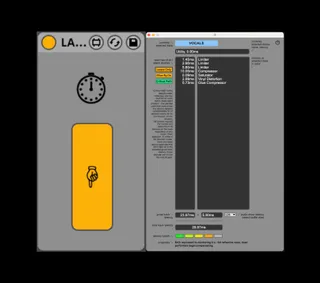
Latency Friend is a dynamic, diagnostic track latency / PDC calculator. Load it anywhere into the set and press the pop-up window button. You will see a floating display containing a list of devices, their latencies, and the total latency; this is your definitive latency breakdown.
With Latency Friend, you can determine and make the compromises you need to make at a glance, rather than relying solely on Ableton's native display, and consigning yourself to a tedious device-by-device mouseover pilgrimage.
The device has:
* A live, per-track breakdown, following the selected track and recalculating instantly
* A synchronised two-column list: latencies (left), device names (right)
* Total device latency, audio-driver latency, and the grand total
* A green-to-red health indicator and prognosis, with general (!) guidelines on the performability of each latency profile
* Recursive capability, through nested racks and parallel chains
* Dynamic recalculation; updates are made as you add/remove devices, toggle on/off, mute/solo chains, or make in-device latency changes (such as the lookahead on a Limiter)
Plus three display toggles:
* Critical Path / All Chains — either show only the longest, latency-setting chain in a rack, or every device across all chains. Parallel chains in a rack don't add up; only the longest one sets the latency. Critical Path lists just that latency-determining chain (the real culprits); All Chains lists every device across every chain as a full inventory.
* Active Only / All — hide what's switched off, or list everything
* Latent Only / All — hide 0.00 ms devices, or show them all
Notes:
You must set the buffer size menu to match your actual buffer settings manually.
The device is built for live performers running heavy real-time effects. This intended use case assumes that the master delay compensation setting, Options > Delay Compensation, is set to Off.
The audio driver figure is calculated from pre-interface universals: buffer size and current sampling rate. It does not (and cannot) factor in your interface's own hardware round-trip.
The device adds some LOM query and CPU overhead. For heavy sets where this becomes an issue, consider it a temporary diagnostic tool and delete when done.