EVERY OTHER SOMETHING A Max for Live MIDI Effect
=============================================== EVERY OT...
- Type
- MIDI Transformation
- Author
- giraffemazel
- Version
- 1.0
- License
- Attribution
- Live version
- 12.0.5
- Max version
- 8.6.2
- Downloads
- 0
- Updated
- 2026-07-05
EVERY OTHER SOMETHING A Max for Live MIDI Effect is a MIDI Transformation for Ableton Live by giraffemazel, distributed as Creative Commons Attribution. It targets Live 12.0.5 and Max 8.6.2. First published 2026-07-04, last updated 2026-07-05. 1 user comment below.
New to Max for Live? Read what MIDI Transformations do, what the Attribution license means, how to install a device.
Description
===============================================
EVERY OTHER SOMETHING
A Max for Live MIDI Effect
Version 1.0
Programmed by Gregg Mazel — Mazel Musical Arts
See YouTube video demo: https://www.youtube.com/watch?v=oEiLXuAcCnk
===============================================
REQUIREMENTS
------------
- Ableton Live 12
- Max for Live
INSTALLATION
------------
1. Unzip the downloaded archive.
2. Drag EveryOtherSomething.amxd into any MIDI track in Ableton Live 12.
(Or copy it to your User Library for permanent access.)
3. Select a MIDI clip and open it in the Detail View (bottom panel).
The device operates on whichever clip is currently shown there.
WHAT IT DOES
------------
Every Other Something selects alternating notes from a MIDI clip by index
and transposes them by a user-defined interval — up or down, any number
of semitones. Think of it as a quick way to create harmonic layers,
polyrhythmic pitch patterns, or unexpected melodic variation from existing
material.
Watch the included video demo for a quick overview of the workflow.
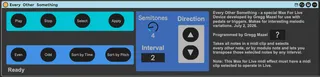
CONTROLS
--------
Semitones Sets the transposition amount (1–24 semitones).
▲ / ▼ Direction toggle — transposes the selected notes
up or down by the semitone amount.
Skip Sets the alternation interval.
2 = every other note, 3 = every third note, etc.
Even / Odd Selects which set of alternating notes is affected —
the even-indexed notes (0, 2, 4...) or the
odd-indexed ones (1, 3, 5...).
Sort Switches between two alternation modes:
Time — alternates notes left to right as they appear
in the piano roll.
Pitch — alternates notes in pitch-ascending order.
Each mode produces different musical results —
experiment with both.
Apply Transposes the alternating notes. Ableton's Cmd+Z (Mac)
or Ctrl+Z (Windows) undoes the operation cleanly.
Select Highlights the alternating notes in the clip editor
without transposing — useful for previewing which
notes will be affected before committing.
WORKFLOW TIP
------------
1. Open a MIDI clip in the Detail View.
2. Set your Skip, Even/Odd, Sort, direction, and semitone amount.
3. Click Select to preview which notes will be affected.
4. Click Apply to transpose. Use Cmd+Z / Ctrl+Z to undo if needed.
5. Repeat with different settings to layer up variations.
LICENSE
-------
This device is provided for personal and commercial use.
Please do not redistribute or resell the device itself.
CONTACT
-------
Gregg Mazel — Mazel Musical Arts
Weymouth, Nova Scotia, Canada
===============================================
See YouTube video demo: https://www.youtube.com/watch?v=oEiLXuAcCnk
Comments (1)