Audio2SubintensityOSC
Ableton / Max4Live Devices to control ETC-EOS Lightdesks vi...
- Type
- Audio Effect
- Author
- alexxaudio
- Version
- 1.0
- License
- Commercial
- Live version
- 12.0.5
- Max version
- 8.6.2
- Downloads
- 0
- Updated
- 2026-07-06
Audio2SubintensityOSC is an Audio Effect for Ableton Live by alexxaudio, distributed as a commercial (paid) device. It targets Live 12.0.5 and Max 8.6.2. First published 2026-07-05, last updated 2026-07-06.
New to Max for Live? Read what Audio Effects do, what the Commercial license means, how to install a device.
Description
Ableton / Max4Live Devices to control ETC-EOS Lightdesks via OSC / Audio & MIDI
Hi there! I work as an audio engineer in theater, and I wanted to be able to precisely control lights and lighting cues along with audio. I was really unhappy with the existing options, so I decided to build my own Max for Live devices.
If you are running a show with Ableton / M4L & ETC EOS, these devices might be just as useful for you.
Here is an overview of how they work. All of the devices share these core features:
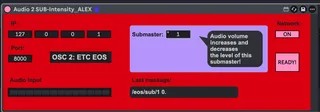
• IP Box: Enter the IP address of your ETC EOS lighting console here (Default: 127.0.0.1 / localhost).
• OSC Port: Enter the network port you are using (Default: 8000).
• Network Switch: Turn the network connection on or off. I recommend turning it off while writing automation to avoid creating chaos on the lighting desk.
• "READY" LED: After loading the plugin into Ableton, it takes 2 seconds for the network connection to initialize. This intentional delay prevents an initial "network bump" from accidentally sending a CUE 0 / Blackout command to the EOS console.
Audio 2 Sub-Intensity:
Incoming audio volume increases and decreases the level of the selected submaster. It works perfectly with pre-recorded playbacks or live audio (simply route your microphone or audio group to the Ableton track and set the Monitor to "In").
Video: https://youtu.be/wSAQZ6XWeks?si=5_qSOgDY5fwdh1iE
Other devices: https://maxforlive.com/profile/user/alexxaudio