stepArp
Draw the patterns you would like your chords to be played in...
- Type
- MIDI Effect
- Author
- greaterthanzero
- Version
- 1.0
- License
- None
- Live version
- 9.0.4
- Max version
- 6.1
- Downloads
- 5
- Updated
- 2013-05-15
stepArp is a MIDI Effect for Ableton Live by greaterthanzero, distributed as freeware, with no license specified by the author. It targets Live 9.0.4 and Max 6.1. On maxforlive.com it has 5 downloads. First published 2013-05-09, last updated 2013-05-15. 11 user comments below.
New to Max for Live? Read what MIDI Effects do, how device licenses work, how to install a device.
Description
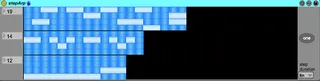
Draw the patterns you would like your chords to be played in.
This MIDI effect is a user-defined arpeggiator, similar to Catanya VST, as requested in this thread:
https://forum.ableton.com/viewtopic.php?f=35&t=193207
* Each column represents an increment of time. Drawing within a column will cause something to happen on that beat. (nothing revolutionary there)
* Each row represents one of four voice allocation numbers (it's based on the order you play each note, not necessarily lowest-to-highest. if you deliberately play the notes of your chord in a different order, this will reflect that).
* The velocity played for each note will match that of the incoming signal.
* There are actually three grids, representing (from top to bottom): a pattern played one octave above your input source, at the same octave as your input source, and one octave below it.
* When two or more adjacent steps on the same line are active, these are treated as one long note, not several short ones. Note, this does wrap around the edge of the pattern.
* These three patterns can be of different lengths, and they'll loop independently of each other, allowing for longer composite patterns and more sonic variety.
* pressing the "one" button at any time will jump all three patterns to their beginnings.
* If a step is active and the incoming note ends, the outgoing note will also end. If a new note comes in to replace it, that new note does sound.
(If you draw one solid block across all four lines, your MIDI source will pass through as originally played. But, why would you want that?)
* This currently requires a stupid amount of screen real estate. Future iterations might move the step entry screen to a popup window.
* That's all I can think of to tell you right now.
There are three separate files: the .amxd, a JavaScript file, and a custom graphic for the matrixctrl object. Put these in the same directory within the Max MIDI Effect folder on your hard drive.
NOTE: This device relies Live's transport to synchronize timing. It thus won't do anything unless the 'Play' button is active.
Comments (11)
Read more here: http://cycling74.com/docs/max5/vignettes/core/live_freezing.html
I hate frozen devices like nobody's business.
Isolated by directory, they can coexist happily. But unfreeze any two such patches for editing, and you've created a file conflict that will never resolve itself without user intervention.
So, maybe I name my files more uniquely. And that'd solve it for sure, until someone builds on my patch and reuses the file. Which I'd totally encourage in any other circumstance, but now?
Technically, that last bit isn't my problem, but it is completely avoidable. Responsible file management means I package the files separately.
We've got a great platform for distributing open source apps, with a convenience feature that discourages modifying each other's code. Refusing to acknowledge it seems the only sane answer.
Is it really hard to implement 64Steps and Velocity on each note? I would pay for that, if it is necessary :). And why every pattern will be deleted, when I change the size of the pattern or save the device for preset storing? Can I change this in the javascript?
This would be the Killer Live Impro-PlugIn with Presets, you can change patterns on the fly, similar to Instant House by Alex Kid. Good for really fast song sketches...
WOW!!! Thanks a lot!
I'll run some tests and re-evaluate.
@bootykowski,
"Useless" is relative.
Presets aren't currently stored, no. You'll find, if you try to add that, there are a couple of clean-up mechanisms in play that are going to interfere in surprising and nasty ways. Those will need to be restructured before it becomes viable.
or is there any way of altering the device manually and store some of the settings?
Thanks, this is a great source of inspiration