- Type
- Audio Effect
- Author
- Funkatronics
- Version
- 1.0.1
- License
- None
- Live version
- 10.0.1
- Max version
- 8.0.0
- Downloads
- 18,101
- Updated
- 2019-01-11
Mix Matcher is an Audio Effect for Ableton Live by Funkatronics, distributed as freeware, with no license specified by the author. It targets Live 10.0.1 and Max 8.0.0. On maxforlive.com it has 18,101 downloads. First published 2018-03-24, last updated 2019-01-11. 15 user comments below.
New to Max for Live? Read what Audio Effects do, how device licenses work, how to install a device.
Description
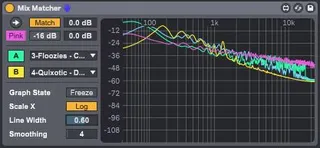
Mix Matcher is a mix referencing tool that allows users to compare their work to other tracks and/or pink noise. This patch uses Live 10's new audio routing features to allow users to route audio into the plugin from 2 tracks within the Live set. This way users can easily line up reference material with their arrangement and reference it with the plugin's audio.
Simply place Mix Matcher on the track you wish to compare (typically the Master) and place your reference material into 2 separate tracks in your live set. Route these tracks into Mix Matcher and you are ready to go.
Mix Matcher is also great for comparing specific tracks in the mixing process such as your kick drum and sub bass.
This patch was inspired by:
- LAEX's referencer reference patch: (http://www.maxforlive.com/library/device/3681/referencer-reference-patch)
- Abletons native "Spectrum" device - Mix Matcher's UI and FFT algorithm were designed to mimic this device.
Changelog
1.0.1 - 2019-01-11
Fixed
- Issue where the device would corrupt Live's undo history due to misused scripting names and parameter visibility. Loading the plugin or changing audio inputs still produces an "Undo Change" in the undo history.
1.0.0 - 2018-03-24
Added
Initial Release
The above format is based on Keep a Changelog (http://keepachangelog.com/en/1.0.0/) and this project adheres to Semantic Versioning (http://semver.org/spec/v2.0.0.html).
Comments (15)
(https://cdn.isotonikstudios.com/wp-content/uploads/Multi_Analyser_XL_Closed.png)
Multi Analyzer uses an incorrect FFT algorithm and (when I used it) it wouldn't let you analyze the audio of the track that the plugin was placed on. This really bugged me, so I made my own. In my testing, Mix Matcher also uses significantly less CPU, so that is another reason I prefer it.
It looks like Multi Analyzer has been updated since I used it, so maybe these issues were fixed.
Thanks for your comment!
Unfortunately, this is the default behavior of live.object and I cannot find a way to change this. If anyone has any ideas on how to get around this, please reach out to me!
If you need to undo though Mix Matcher's "Undo Change" you can, you just may need to reload the plugin or reset your input selection. I apologize for this inconvenience, and I will continue to look for a solution to this problem. The rest of the weird undo history messages have been fixed so hopefully this version works better for you.
Thanks!
++ possibility to increase the size of the graph with a dedicated windows in 2 sizes (not available on the Isotonik product if I'm right)
+ the thickness of the lines in the graph (line width), not available on the Spectrum device from Ableton Live
+ the scale for 2 different approaches of all frequencies displayed
+ the frequency of refresh of the frequencies (smoothing)
+ the freeze function
- not the "sniper" feature of the Spectrum tool of Ableton Live, I mean when you put your mouse on the graph in the Spectrum, you see the frequency, the note and the volume of the specific point where you put your mouse in the graph. It can be less useful if the graph windows would be even bigger than the 'Big' view.
- not the "max" feature of Live's Spectrum to see maximum volume reached and staying the graph at the same time the graph is still moving on with the sound arriving on the track for analysis. This feature is great to work on peaks without having to stop the sound or freeze all the time to track peaks.
Do you think you can add these 2 features? It can be a real competitor to the Isotonik charged tool.
What means the Match button?
And just to confirm but the graph displayed the sound of a track on its post mixer moment right?
Thanks in advance for the feedback and thanks again for this great tool. :)
The Match button attempts to match the levels of all the spectrums so you can compare the frequency content without having to gain match manually. So internally it dynamically raises/lowers the gain of the incoming signals to match the main signal (from the track the plugin is placed on). This DOES NOT affect the actual levels of the sounds played back trough Ableton. It only changes the levels being displayed in Mix Matcher. Hopefully that clears things up for you.
Yes, the signals are always measured and displayed POST mixer. So changing the volume at the track fader will change the level of the graph displayed in Mix Matcher (unless the Match button is enabled!)
I will see what I can do about these 2 features you've requested. These are great ideas, and I think they are doable. I'll try to get these rolled out in a new version ASAP!
Thank you so much for the feedback, I really appreciate it!
- Funkatronics
Question: Is there a way to still see a tracks values on the spectrum while it is muted or another track is solo'd? If not is that a possible feature for the future?
Reasoning: I have this on my master template to compare my track to another, but sometimes I just want to hear my track, but see the comparison between the track I'm A/B'ing and mine. This way, if I lined them up properly I can see the value differences but still only hear my track that I'm working on. Otherwise it is just 2 tracks playing at once and that helps visually, but audibly it is overwhelming.
Instead i just set my reference track to Sends Only and then send the entire signal 100% to the send/return.
In the device i still just choose the regular reference track to see it but not hear it. I can turn the reference tracks audio on and off by soloing or muting the send/return.