CPHN AUTOCLIP
cphn - auto clip Automatic clip-gain staging for Able...
- Type
- Audio Effect
- Author
- cellophanaudio
- Version
- 1.0
- License
- None
- Live version
- 12.0.5
- Max version
- 8.6.2
- Downloads
- 0
- Updated
- 2026-05-11
CPHN AUTOCLIP is an Audio Effect for Ableton Live by cellophanaudio, distributed as freeware, with no license specified by the author. It targets Live 12.0.5 and Max 8.6.2. Published 2026-05-11.
New to Max for Live? Read what Audio Effects do, how device licenses work, how to install a device.
Description
cphn - auto clip
Automatic clip-gain staging for Ableton Live 12+.
cphn - auto clip is a Max for Live utility that listens to the audio passing through its track, estimates a calibrated VU/RMS-style average, and writes a static Clip Gain correction to the relevant audio clip. It is designed for fast pre-plugin gain staging before analog-modeled compressors, saturators, channel strips, and console-style processors.
What it does:
- Measures incoming track audio with a 300 ms VU-style RMS window.
- Uses a rolling gated average to ignore silence, tails, and tiny noise.
- Lets you choose a target reference level such as -18 dBFS.
- Applies the correction directly to Ableton Clip Gain.
- Passes audio through transparently; it is not a compressor, limiter, or live gain effect.
UI guide:
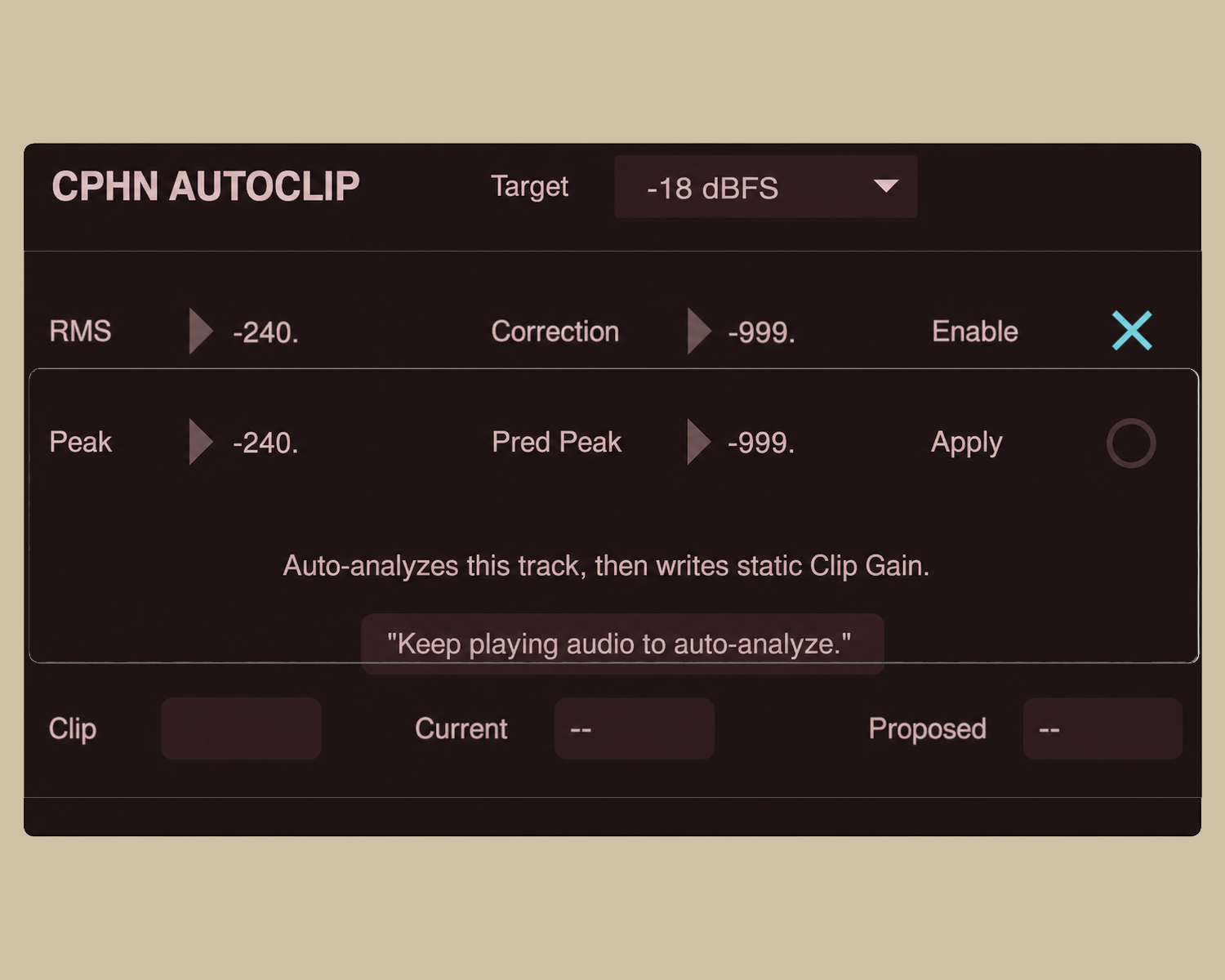
- Target: choose the reference level you want the clip to average around.
- Enable: turns the analysis/control behavior on or off. Audio still passes transparently.
- Apply: writes the calculated Clip Gain correction to the clip.
- RMS: current calibrated rolling average estimate.
- Peak: recent sample peak safety readout.
- Correction: proposed Clip Gain change.
- Pred Peak: estimated peak after correction.
- Clip / Current / Proposed: selected or detected clip info and gain state.
- Status: tells you when the device is ready, waiting for audio, or has applied gain.
Workflow:
1. Place the device before your level-sensitive processors.
2. Play a representative section of the audio clip.
3. Wait for the correction readout to settle.
4. Click Apply.
5. Replay the same section to verify or apply a fine trim.
Best for:
- Fast -18 dBFS-style gain staging.
- Preparing clips before analog-modeled plugins.
- Session View clips playing on the same track as the device.
Notes:
Arrangement View has a Live API limitation, so select the target clip when working in Arrangement. MIDI clips are ignored.