- Type
- MIDI Effect
- Author
- cooptrol
- Version
- 1.0
- License
- None
- Live version
- 8.2.2
- Max version
- 5.1.8
- Downloads
- 441
- Updated
- 2011-11-02
ESX Noter is a MIDI Effect for Ableton Live by cooptrol, distributed as freeware, with no license specified by the author. It targets Live 8.2.2 and Max 5.1.8. On maxforlive.com it has 441 downloads. First published 2011-10-31, last updated 2011-11-02. 1 user comment below.
New to Max for Live? Read what MIDI Effects do, how device licenses work, how to install a device.
Description
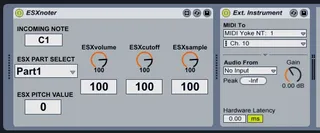
ESXnoter is a device made for sequencing notes in Live and sending them as corresponding pitch values to the
Drum Parts of the Electribe ESX sampler. The idea is to use the drum parts as keyboard parts too. This version also includes control of parameters: Cutoff, Level and Sample Select. I may add more controls in the future.
There is also an ESXnoterKB for the Keyboard parts, that only send parameters control (no need for note conversion).
REQUIREMENTS:
On the ESX:
_Your drum parts should have the MIDI notes assigned as follows (whole C2 octave):
Part1 - C2
Part2 - C2#
Part3 - D2
Part4 - D2#
Part5 - E2
Part6A - F2
Part6B - F2#
Part7A - G2
Part7B - G2#
Stretch1 - A2
Stretch2 - A2#
Slice - B2
_Your Drum Parts MIDI channel must be set to 10
_Your Keyboard parts MIDI channel must be set to 8 and 9.
_The samples you plan to use must be tuned to C3. To achieve this you can connect the
output of the ESX to the input of an audio track in Ableton Live and insert the audio effect "Spectrum". Then on the ESX
go to "Sample Tune" and move the dial til you get the C3 spike on the graph of Spectrum.
On your computer:
Download the ESXnoter package: http://www.cooptrol.com/ESXnoter.zip
You must install the following software:
Ableton Live 8.2 or higher
Max 5.1 or higher (the demo also works: http://cycling74.com/downloads/)
MidiYoke (its free: http://www.midiox.com/zip/MidiYokeSetup.msi)
MidiOX (its free: http://www.midiox.com/moxdown.htm)
INSTRUCTIONS:
1) Connect the output of your MIDI interface to the MIDI input of the ESX
2) Open MidiOX, and open in it the "ESXnoter.ini" file on the package
3) In the MIDI devices configuration menu, select MidiYoke1 as input and [your MIDI interface] as output
4) Open Ableton Live and drag and drop the "ESXnoter.amxd" file on the effects section of a MIDI channel.
5) Open MIDI configuration in Live, and toggle "on" the Track output of MidiYoke1
6) Throw a "External Instruments" device to the right of the ESXnoter, and set it to trasmit to MidiYoke1 and channel 10. For Keyboard parts set it to 8 and 9 respectively.
7) Select a drum part on the ESXnoter, and play some notes or create a clip and play it. Voila!
IMPORTANT: The pitch parameter has a range of 4 octaves, so you can play notes up to C5 and down to C1,
higher notes will sound as C5 and lower as C1.
If you need help, feel free to contact me at kooptrol @ gmail.com
Enjoy!
Comments (1)