- Type
- MIDI Effect
- Author
- pinch
- Version
- 0.1
- License
- AttributionNonCommercial
- Live version
- 8.2
- Max version
- 5
- Downloads
- 558
- Updated
- 2012-05-18
PINCH ARDUINO BEAT is a MIDI Effect for Ableton Live by pinch, distributed as Creative Commons Attribution-NonCommercial. It targets Live 8.2 and Max 5. On maxforlive.com it has 558 downloads. First published 2012-05-17, last updated 2012-05-18.
New to Max for Live? Read what MIDI Effects do, what the AttributionNonCommercial license means, how to install a device.
Description
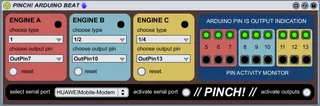
PINCH! ARDUINO BEAT
lets your arduino set the digital outputs on/off (+5V/0V) according to your Ableton Live Engine Tempo
it uses code from the maxuino005 patch of:
Hans-Christoph Steiner <[email protected]>, Georg Holzmann, Gerda Strobl, Marius Schebella <[email protected]>, Christopher Coleman <[email protected]>
tested only with:
- Arduino Uno
- Firmata (old version)
- Max MSP 5 // Live8 Max for Live
INSTALLATION:
1. get an arduino board / Max for Live / Ableton Live
2. download the arduino software here: http://arduino.cc
3. upload the firmata firmware on your arduino-chip (File/Examples/Firmata/OldFirmataStandart).
4. close the arduino software; if you upload any sketch now from there, the firmware will be deleted and you have to do it again.
5. copy the "PINCH! ARDUINO BEAT.amxd" into your MaxforLive patches folder
6. open Ableton Live
7. insert "PINCH! ARDUINO BEAT.amxd" on a midi-channel
8. choose the serial port for your arduino
this may not work if you use the arduino on another computer than the one you uploaded firmata from
9. activate serial port
10. activate outputs
11. check with the onboard led on pin 13 if it works (the metronome of live is a good help for that)
12. hook up anything to the output pins 5-13 of your arduino to trigger / activate in time with live!
please write for questions / testimonials to: