Liveaudio2OSC
This plugin allows you to send OSC values to TROIKATRONIX : ...
- Type
- Audio Effect
- Author
- alexxaudio
- Version
- 1.0
- License
- Commercial
- Live version
- 12.0.5
- Max version
- 8.6.2
- Downloads
- 0
- Updated
- 2026-07-14
Liveaudio2OSC is an Audio Effect for Ableton Live by alexxaudio, distributed as a commercial (paid) device. It targets Live 12.0.5 and Max 8.6.2. First published 2026-07-13, last updated 2026-07-14.
New to Max for Live? Read what Audio Effects do, what the Commercial license means, how to install a device.
Description
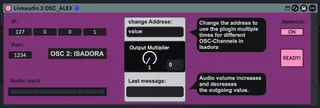
This plugin allows you to send OSC values to TROIKATRONIX : ISADORA, depending on the incoming audio. For example, you can apply it to the brightness level of your projection: the louder the incoming audio, the brighter the projection. You can also use it for zoom, color, position, and more.
Isadora allows you to choose which string name to use. The software operates with channels that can be aligned with incoming OSC strings.
To configure this in Isadora:
1. Go to 'Communications' - 'Stream Setup'.
2. Select 'Open Sound Control' and enable 'Auto-Detect Input'.
3. Send OSC data from Ableton, and Isadora will automatically detect it.
Once detected, you can align the channels with the corresponding strings and use the 'OSC Listener' actor, for example, to process the incoming OSC values.
This is why you can change the address at the top of the M4L device. If you want to use more strings and channels in Isadora, simply load the plugin multiple times and change the address.
The value range is 0-100, depending on the incoming audio. If you need a larger value range for your effects in Isadora, use the 'Output Multiplier'.
All you need to get this stuff to work is a computer with Ableton Live and Max4Live, a Computer with Isadora running (might be the same as the Ableton-Computer) and a network cable (if you use two different machines).
Some projectors or monitors might also be useful (don't ask me about video, I'm sound! 😉).
I really hope this is useful for you and that you have a lot of fun using it!
VIDEO: https://youtu.be/z9WhWm5RiOk?si=gmVvM2xi-DCZ7PN9
Alex
I used AI to create this devices.