- Type
- MIDI Effect
- Author
- Kampfer
- Version
- 1.5
- License
- AttributionNonCommercialNoDerivatives
- Live version
- 10.1.14
- Max version
- 8.1.3
- Downloads
- 5,275
- Updated
- 2020-08-06
Nord Lead 2X Remote is a MIDI Effect for Ableton Live by Kampfer, distributed as Creative Commons Attribution-NonCommercial-NoDerivatives. It targets Live 10.1.14 and Max 8.1.3. On maxforlive.com it has 5,275 downloads. First published 2013-09-10, last updated 2020-08-06. 82 user comments below.
New to Max for Live? Read what MIDI Effects do, what the AttributionNonCommercialNoDerivatives license means, how to install a device.
Description
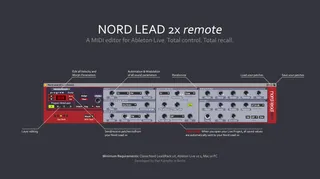
KEY FEATURES
+ TOTAL RECALL: When you open your Live Project, all saved values are automatically sent to your Nord Lead 2X hardware
+ RECEIVE and SEND patches from your Nord Lead 2X hardware
+ LOAD and SAVE presets in Ableton Live
+ As you EDIT any controller on the Nord Lead 2X hardware, you can FOLLOW this on the plug-in
+ VIEW and EDIT all MORPH/Velocity parameters
+ Quick access to the "SECRET" FILTER TYPE (Notch)
+ BI-DIRECTIONAL editing of all sound parameters
+ Precise AUTOMATION & MODULATION of all sound parameters
+ Use up to four layers for MULTI-SEQUENCING or STACKING: Load and route four instances on different MIDI tracks
+ Your saved patches and program banks will not be overwritten on the Nord Lead 2X Synthesizer until you decide and press the red store button
+ RANDOMIZE your patches to find inspiring sounds - just click on the small dots in the headers (LFO, OSCs, Amp & Filter)
+ Low CPU usage
WHAT IT CAN'T DO:
- It does not generate any sound by itself - you also need the Nord Lead 2X SYNTHESIZER
- No Performance Mode
SETUP ABLETON LIVE - Please read carefully!
1. Download "Nord Lead 2X.amxd" and copy it to Live's User Library: Ableton/User Library/Presets/MIDI Effects/Max MIDI Effect
2. Quit and restart Ableton Live
3. Drag & Drop "Nord Lead 2X.amxd" from Live's Browser (Max for Live -> Max MIDI Effect) onto a new MIDI track and arm it (click the red button below the solo button)
4. Drag & Drop an "External Instrument" onto the same MIDI track and set the MIDI and Audio routings according to your setup (MIDI Channel 1 for Layer A, MIDI Channel 2 for Layer B...)
5. Open Live's Preferences and go to the Link/MIDI Tab. Activate "Track" and "Remote" for both MIDI ports your Nord Lead 2X is connected to (Input & Output). Optionally, you can activate "Sync" on the MIDI port output to retrigger the LFOs in Sync with Live.
6. If you want to use the four layers (A,B,C,D) of the Nord Lead 2X, create up to four MIDI tracks and repeat instructions 3 and 4.
SETTINGS ON YOUR NORD LEAD 2X HARDWARE - Please read carefully!
7. Make backups of your programs and banks before you start
8. Connect two MIDI cables to the MIDI Input and MIDI Output from the Nord Lead 2X to your Audio/MIDI Interface
9. LOCAL CONTROL = OFF (press & hold SHIFT and tap once the LOCAL Button = off) -> this setting is not permanent after switching off - so please always check this setting after switching on the Nord Lead 2X
10. PROGRAM CHANGE: ON (press & hold SHIFT and tap once the PROG.CTRL Button = P.on)
11. CONTROL CHANGE: ON (press & hold SHIFT and tap two times the PROG.CTRL Button = C.on)
12. MIDI CHANNELS: LAYER A = 1, B = 2, C = 3, D = 4
13. GLOBAL MIDI CHANNEL = 16 (press & hold SHIFT and tap two times the MIDI CH button = G.16) - this is necessary for Program Change Messages and Perfomances only, don't use Channel 16 in Live's External Instrument instead (only use MIDI Channels 1,2,3 and 4)
USING PRESETS
There are 3 round buttons in the upper right corner of this device. To save a preset, please click the right button (click "Do not copy" in the following popup). Alternatively, you can also drag and drop the plugin into any folder in Live's Browser to save a preset.
To load a preset, you can drag a saved preset from Live's Browser directly onto the device or onto a new MIDI track. By clicking the middle button in the upper right corner of this device ("Hot Swap") you can quickly call up and load previously saved presets.
KNOWN BUGS
• When you open a very large project in Ableton Live patches are occasionally not transferred correctly. Solution/Workaround: Close the project without saving (but keep Ableton running: load a new project) and open it again.
• For accurate SysEx dumps (sending / receiving patches) it is recommended to stop the playback
• Version 1.5: The following buttons have changed their states (Off -> On / On -> Off): UNISON, AUTO (Portamento), KEY (OSC2), VEL (Filter) and DIST (Filter). This only affects old patches saved in Ableton (* .adv) and instances of older versions in your song projects!
VERSION HISTORY
2013-09-10 Version 1.0
Initial Release
2013-09-17 Version 1.1
New Nord Lead 2X GUI
2013-09-24 Version 1.2
Added Program/Bank Change incl. "Send" button to send all current controllers to the Nord Lead 2X
2013-10-29 Version 1.3
Major Update: Import/Export Patches (SysEx Dump), Layer, Velocity/Morph, Randomize, Mouse-over infos
2020-06-03 Version 1.4
Full SysEx support for Ableton Live 10 (no more SysEx bridge required!)
2020-07-29 Version 1.5
Ableton Push 2 support: Parameters are now sorted in banks to allow faster access
REQUIREMENTS
+ Clavia Nord Lead/Rack 2X
+ Ableton Live 10
+ Mac/PC
TECHNICAL SUPPORT
Please read and follow the steps above before contacting me, thanks! Email: [email protected]
Developed by Piet Kämpfer in Berlin
Comments (82)
Just missing a tab or something to scroll through the presets.
this is just amazing!!!
I have a nord lead 2 and I will test it as soon as I will eb home...ever had any chance of testing it yourself?
I will report back
thank you for sharing this!!!
this is just amazing!!!
I have a nord lead 2 and I will test it as soon as I will eb home...ever had any chance of testing it yourself?
I will report back
thank you for sharing this!!!
this is just amazing!!!
I have a nord lead 2 and I will test it as soon as I will eb home...ever had any chance of testing it yourself?
I will report back
thank you for sharing this!!!
this is just amazing!!!
I have a nord lead 2 and I will test it as soon as I will eb home...ever had any chance of testing it yourself?
I will report back
thank you for sharing this!!!
I need some more time with it, to see how automation will work out, but for sound design it's perfect.
Something else I'll look into next time, is the preset browsing. You see, I have a PCMCIA memory card, which has quite some presets I'd like to audition again, and this setup won't allow me to browse to these banks. maybe disconnection a midi connection to the nordrack could solve this (temporarily, to get to the presets). I just made a percussion set, tried to save it to the memory card, but couldn't. As soon as you reach the last preset of the internal memory, you go back to 001. Luckily, saving the presets for the M4L device seems to work great, and probably has it's advantages.
So far, the only little thing is the preset handling on the M4L device itself. It seems you can only click through the presets instead of click/holding and scrolling through the list. Maybe I need to get more used to Push (which works fantastic with this editor, too), and the nordrack itself as well. So, not important at all for me...
Thanks a lot, Piet! Great stuff!!!
you can scroll through the presets by moving the mouse (left click and hold) over the preset number field. Or type in the desired program number. If u have problems with the program up/down buttons you can try to use "Local on" mode on your synth. this m4l device is tested only for nord lead 2x (which don't uses pcmcia cards anymore)!
Also, be prepared to deal with the Clavia Music litigation team for using the actual Nord Lead logo. I went through hell with Clavia just over the name of the editor (I originally named mine the VST Nord Lead Editor without using their logo) and they contacted me about it to change it. I also had similar issues with Access Music when I released the VST Virus Editor back in 2006. Be very careful that the graphics and names you use on your products are not already used or protected by copyright laws!
Cheers,
lanrosta
thanks very much for sharing this device!
I try to use it with my Nord Lead 2 on a Windows 7 64 PC and I can't seem to get the sysex transfer to work. If I select the MIDI devices in the Max sysex bridge patch I cannot use them in Live anymore and vice versa.
Do I have to use a MIDI loopback device or something to be able to dump sounds from and to my Nord?
Best regards and thanks again.
bassmatiker
With another MIDI interface device I own (NI Komplete 6) the strange behaviour of exclusive availability of MIDI ports does not appear, so this does not seem to cause the problem.
The MIDI IN signal is received in the sysex bridge as well as in Live.
Is the MIDI Out Signal control in the sysex bridge supposed to flash when I move your controller's buttons? Because it does never ever flash.
Thanks very much.
bassmatiker
I'm sorry if this is a noob question.. but does this work like a VST-Plugin in Ableton? Can i drop audio effects and so on? Like i do with Sylenth etc? Sorry if this information is here somewhere, couldn't find it.
Best,
Olkan
I'm sorry if this is a noob question.. but does this work like a VST-Plugin in Ableton? Can i drop audio effects and so on? Like i do with Sylenth etc? Sorry if this information is here somewhere, couldn't find it.
Best,
Olkan
I'm sorry if this is a noob question.. but does this work like a VST-Plugin in Ableton? Can i drop audio effects and so on? Like i do with Sylenth etc? Sorry if this information is here somewhere, couldn't find it.
Best,
Olkan
I am having the same issues as Bassmatiker with Nord Lead 2 keyboard, on Mac Ableton 9.1
SysEx bridge will see a signal in the MIDI input and flash but nothing on the MIDI output, so the SysEx dump in the max for live device does not work in either direction, it just changes all parameters to zero.
I would love to be able to get this to work so I an save patches in Live, any help appreciated!
Thanks
The MIDI Output Signal from the SysEx Bridge must flash on every dump (Send & Get/Request) you make from the plug-in. Even if a NordLead is not connected.
I build this plug-in for a NordLead 2X which has some minor differences to the NordLead 2. Sending a patch from the Plugin to the NordLead 2 could work.
Receiving a patch from the NordLead 2 (Patch Dump Request) via the plugin could work maybe if you change a code in the plugin: Open the plugin in Max4Live, unfreeze it, go to Patch Mode, find the info box called "Patch Dump Request 14 (Edit Buffer) 0-3 (Slot A-D)", double click on "pack 240 51 15 4 14 0 247" and type in "pack 240 51 15 4 0 0 247", than save it and quit max4live and Ableton. (not sure if it works! just an idea because the MIDI Implementation in the manual from Clavia was incorrect in this case).
In general I only can give the advice to try the plugin with a NordLead 2X only.
Cheers
Piet
The MIDI Output Signal from the SysEx Bridge must flash on every dump (Send & Get/Request) you make from the plug-in. Even if a NordLead is not connected.
I build this plug-in for a NordLead 2X which has some minor differences to the NordLead 2. Sending a patch from the Plugin to the NordLead 2 could work.
Receiving a patch from the NordLead 2 (Patch Dump Request) via the plugin could work maybe if you change a code in the plugin: Open the plugin in Max4Live, unfreeze it, go to Patch Mode, find the info box called "Patch Dump Request 14 (Edit Buffer) 0-3 (Slot A-D)", double click on "pack 240 51 15 4 14 0 247" and type in "pack 240 51 15 4 0 0 247", than save it and quit max4live and Ableton. (not sure if it works! just an idea because the MIDI Implementation in the manual from Clavia was incorrect in this case).
In general I only can give the advice to try the plugin with a NordLead 2X only.
Cheers
Piet
I've just had a breakthrough - i sent the dump from the actual keyboard rather than clicking the button on the max for live editor and it worked!
Thanks again for creating this device - its really helpful to see what some of the hidden parameters are and so useful for saving patches!
Hopefully this will work for anyone else with a Lead 2 rather than 2x
Regarding the SysEx bridge "occupying" the MIDI device:
I can get it to work with my Scarlett 6i6, but not with the Elektron TM-1. Maybe there's a "multi-client" issue with the MIDI ports ?
I have to say, what an amazing device... works extremely smoothly.
I have just one issue and is when it comes to save the patch, is not working. When I save the patch and try to reopen it he returns to the default sound.
I'm running Windows 7 and when I open the nordlead SysEx Bridge it appears the "Microsoft windows synthetizer" but no matter what output I select he always returns to the "Microsoft synthetizer" output.
I don’t know what to do, I can’t bypass that midi out
Does anybody else have this issue?
thanks!
Using Ableton 9 with Max 7 on PC with Win7.
VST bridge doesn't works when Ableton is running . When i start the bridge i get following error in MAX console :
midi_mme: error 1 opening midi input device FirePod #00C6091749 MIDI In
midi_mme: error 1 opening output device FirePod #00C6091749 MIDI Out
Looking like Ableton locks MIDI ports i want to use with Nord Lead.
Should i setup something in Ableton before using the bridge?
Do i need register\install the bridge ? I just double click on Nord Lead 2X SysEx Bridge.maxpat file to start it , is that correct way to run the bridge ?
Thanks!
Using Ableton 9 with Max 7 on PC with Win7.
VST bridge doesn't works when Ableton is running . When i start the bridge i get following error in MAX console :
midi_mme: error 1 opening midi input device FirePod #00C6091749 MIDI In
midi_mme: error 1 opening output device FirePod #00C6091749 MIDI Out
Looking like Ableton locks MIDI ports i want to use with Nord Lead.
Should i setup something in Ableton before using the bridge?
Do i need register\install the bridge ? I just double click on Nord Lead 2X SysEx Bridge.maxpat file to start it , is that correct way to run the bridge ?
Thanks!
Some MIDI interfaces/soundcards don't support MULTI CLIENTS on WINDOWS. Please check if you can get a dedicated driver for your interface or try other interfaces from RME, Motu, Steinberg etc.
Cheers
Piet
very cool plugin, I love that.
Unfortunately I can't get it to work properly with mY Nord Lead 2. I can't import Sysex from the Synth to the plugin...
So I was wondering Can I open directly Sysex files? So I could dump sysex to pc then load them to the plugin...
thanks,
F.
Patch Dump Request:
"pack 240 51 15 4 14 0 247" - This worked but the filters or envelopes were tampered with and thus the patch did not sound identical. I presume this is because I'm using a NL2x request sysex string instead of an NL2.
So ...
I then edited the plugin and tried the following as instructed in the NL2 manual.
"pack 240 51 15 4 0 0 247"
This time no patch was dumped to the plugin at all. This means either the sysex string ( thus manual ) is incorrect OR there is another parameter that needs to be changed in the plugin.
In any event, I can at least confirm that the Nord Lead 2 DOES NOT work with this plugin. Only the 2x which was the developers original intention anyways. So all is fine.
Thanks very much for the excellent plugin.
Jim
Thanks again.
Jim
"I've just had a breakthrough - i sent the dump from the actual keyboard rather than clicking the button on the max for live editor and it worked!"
That should do the trick instead of using the plugin to initiate the transfer. I'll give it a shot.
Thanks.
ag0os (djNeurona)
installed today and I have a question and a problem:
I have Max4Live 7.2.4 running, and I was not successful to run the sysex bridge without installing an older runtime (6.1). Before installing the older runtime I have tried without and got a message I should authorize M4L in Ableton by editing a device. Although I clicked on "edit" on the NL2xRemote Device, this has not changed.
I only get the bridge running by starting the runtime, loading the bridge and configuring in & out. In addition, I could not save this and need to do this every time. What am I doing wrong? Is it possible to set this up in a way without starting and configuring things before I run Ableton?
The problem I have is that I need to load a Live Set 2 times until the changed patches get transferred. Today I reboot the PC an switched everything off about 10x. Each time it is the same:
1. Start the runtime
2. Load sysex bridge
3. Configure midi
4. Start Ableton
5. Load Live Set - has the sounds from the NL
6. Load Live Set again - has the sounds from the live set
As so many people are happy with this Max device, it must be a mistake I am doing on my side. I have about a week left to decide if I will keep the NL2x or give it back. Having such a hick up when using it, will make it useless for me.
Hope anyone has any idea what I can do to get it running in a good way.
Kr,
robse
I guess you are doing it right (almost same procedure here). Ableton does not support SysEx natively so the Bridge is still a compromise solution and causes the majority of your inconvenience with the plugin. :/ Also please keep in mind that you are dealing with a (free) hardware/software solution which even on a Virus TI needs some 'tech love' to make it work nicely... If that's too much and useless you should go with synth plugins instead of hardware.
I usually do a double click on the maxpat file to open the bridge. It's not possible to save the settings, because the sysex bridge will update the available Midi ports on every load. When you open a big live project it can sometimes happen, that the data is not fully sent to the NL on the first load (there are some 'timers' inside the plugin which could cause this problem). So I recommended already in the description to reload the project - 'known bugs'.
Cheers
Piet/Protonica
Thanks a Million for your fast reply! Double clicking on the maxpat files is something I can perfectly live with for sure.
But now I have tried a second time and still don't get it running with "total recall".
I have opened a project with 3 tracks only:
1. Drum Rack
2. nl2x remote out to midi channel 1 / activated slot A
3. nl2x remote out to midi channel 2 / activated slot B
On the Nordlead 2X I have set "globally" that Slot A is on Midi channel 1, Slot B on 2, Slot C on 3 and Slot D on 4 - global Midi channel 16
The 4 Mono outputs are connected to the 4 slots, like I was playing 4 non stereo synths. This way I can use Push2 perfectly with the Mixer for instance.
I have also changed Performance A1 to have the same settings for Midi & Audio and then I tested with both: Perfomance Mode on & Performance Mode off.
In the beginning I changed sound, played a bit and saved. Opened another project, changed NL2x sounds and went back to the test project.
What happened then was random: One sound was there, the other one was not the one I have created before. Then a second time: No sound changes were stored. As I said, I did that with Performance Mode on & off.
I noticed that sometimes I was not able to switch a button on the NL2x at all. Then I played around in the editor and it worked again. This looks like the Midi message did not get handled correctly.
If you see something I am doing wrong or if you have any advice how to set up correctly (4 synths on 4 outs, no layering), that would be great. Maybe I should try other Midi cables too.
BTW, I noticed that this is for free and still it is the only one with the perfect concept for Ableton & Push! I really hope I get it running, because it would just be great!
Br,
robse
Thanks a Million for your fast reply! Double clicking on the maxpat files is something I can perfectly live with for sure.
But now I have tried a second time and still don't get it running with "total recall".
I have opened a project with 3 tracks only:
1. Drum Rack
2. nl2x remote out to midi channel 1 / activated slot A
3. nl2x remote out to midi channel 2 / activated slot B
On the Nordlead 2X I have set "globally" that Slot A is on Midi channel 1, Slot B on 2, Slot C on 3 and Slot D on 4 - global Midi channel 16
The 4 Mono outputs are connected to the 4 slots, like I was playing 4 non stereo synths. This way I can use Push2 perfectly with the Mixer for instance.
I have also changed Performance A1 to have the same settings for Midi & Audio and then I tested with both: Perfomance Mode on & Performance Mode off.
In the beginning I changed sound, played a bit and saved. Opened another project, changed NL2x sounds and went back to the test project.
What happened then was random: One sound was there, the other one was not the one I have created before. Then a second time: No sound changes were stored. As I said, I did that with Performance Mode on & off.
I noticed that sometimes I was not able to switch a button on the NL2x at all. Then I played around in the editor and it worked again. This looks like the Midi message did not get handled correctly.
If you see something I am doing wrong or if you have any advice how to set up correctly (4 synths on 4 outs, no layering), that would be great. Maybe I should try other Midi cables too.
BTW, I noticed that this is for free and still it is the only one with the perfect concept for Ableton & Push! I really hope I get it running, because it would just be great!
Br,
robse
The remote plugin does not support Performance Mode! You need to stay in Program/Patch Mode.
Here is what I do to make use of the 4 Layers (A,B,C,D) on 4 different Channels/MIDI Tracks (please read careful):
1. Create 4 MIDI Tracks
2. put on each MIDI Track the remote plugin and an 'External Instrument'
• Settings on all MIDI Tracks:
'MIDI From': All Ins / All Channels - I own the Rack Version of NL2X, so another MIDI Keyboard will send notes, Pitch Wheel and ModWheel data to it
‘Monitor': Auto
‘Audio To‘ Master
• Settings on the plugins:
MIDI Track 1 = Program Slot/Layer A
MIDI Track 2 = Program Slot/Layer B
MIDI Track 3 = Program Slot/Layer C
MIDI Track 4 = Program Slot/Layer D
• Settings on 'External Instruments':
MIDI Track 1 = 'MIDI to: Ch.1' - 'Audio from: 1' - ‘Latency: 2ms'
MIDI Track 2 = 'MIDI to: Ch.2' - 'Audio from: 2' - ‘Latency: 2ms'
MIDI Track 3 = 'MIDI to: Ch.3' - 'Audio from: 3' - ‘Latency: 2ms'
MIDI Track 4 = 'MIDI to: Ch.4' - 'Audio from: 4' - ‘Latency: 2ms'
• Settings on the NL2X hardware:
Layer A = MIDI CH 1
Layer B = MIDI CH 2
Layer C = MIDI CH 3
Layer D = MIDI CH 4
Global MIDI CH = G.16
Local = off
Now comes the 'tricky' part: everytime you want to control or change a certain Layer you have to
1) press the Program Slot/Layer on your NL2X Hardware (A,B,C or D)
2) press the TRACK ARM BUTTON in Ableton of the MIDI Track which you want to change (if Layer A, click the Track Arm Button of MIDI Track 1)
If you did everything correctly you are able to play 4 different MIDI clips at the same time, send & receive SysEx for each Layer, make Velocity/Morph settings for each layer, automate/modulate different layers etc. And most important: total recall!
Hope it helps
Cheers
Piet/Protonica
? Settings on the NL2X hardware:
OUT MODE: 4.Ab and 4.cd (or -.cd)
much appreciated! Thank you for the detailed explanation. I have set up everything again and it is still not working (Total Recall).
I think it is a problem with the Sysex, either the NL2X is buggy or the Steinberg UR 22 Interface causes the issue or something is wrong with M4L.
I watched the Sysex Out LED in the bridge, it flashes a splitsecond when reopening the project and sounds are random. Either nothing is changed but a program change is done, or it changes parts of the sound only, not all parameters.
I think I have to investigate at another place (Midi Sysex in Ableton, Midi & Steinberg and the Synthesizer itself).
As I have only a few days left to decide if I give the NL2X back, it may happen that I will continue using VSTs only. This would be a bit sad, as the NL2X is awesome sounding compared to the Discover DSP, which I own and which is still good. The good news would be, that I will save a lot of money not buying the NL2X and a new Steinberg Interface with 4 Ins.
I would like to say that your Max Device is awesome. It is the perfect integration into Ableton and no matter if I will use it or not, many thanks for this great gift you give to other musicians!
Best wishes,
robse
Here is a small checklist of problems which users often have while setting up:
- Are you using Windows? If so, I highly recommend to download drivers for the ur22 with a so called "Multi Client" support.
- Does the plugin send all data in a small project of 1-4 channels only (total recall)?
- Are you able to make changes of the Morph/Velocity layer?
- Have you followed the setup instructions correctly? (e.g. Ableton's Midi Preferences tab)
Here is a small checklist of problems which users often have while setting up:
- Are you using Windows? If so, I highly recommend to download drivers for the ur22 with a so called "Multi Client" support.
- Does the plugin send all data in a small project of 1-4 channels only (total recall)?
- Are you able to make changes of the Morph/Velocity layer?
- Have you followed the setup instructions correctly? (e.g. Ableton's Midi Preferences tab)
Doesn't fully function for me in Ableton, but it's still so useful!
Only issue i'm having is that when i change the knobs on the hardware, they dont also move in max for live. the bridge shows a light for midi IN when i modify the hardware, but midi out never lights up. All midi ports are enabled in ableton as well. Is this an easy fix?
how do i get the buttons to control the hardware (switch waveforms and such) as well? Is there a mapping file or ableton template?
I am using Ableton Live 10 Beta and the amxd is working perfectly except for slots. I am also having an issue running the Sysex bridge maxpat from the new Max for Live in v10. The programme is loading from Max for Live but the dropdowns are inactive so I cannot assign Midi Input and output other than via the external instrument.
any help much appreciated as I'd love to see this code move into v10 and beyond as it's just so good!
As per my last post, the new Sysex functions in Ableton 10 might be useful as a way of removing the need for SysexBridge and streamlining the workflow in this device. Just a thought, ...
Ok, thanks for the infos. When I have time I can try to remove the SysEx Bridge and include SysEx communication to the plug-in. The plugin might not be free of charge after the update.
FYI, I've tried all of the Nord options out there, this is by far the most stable, easy to use and convenient.
My only suggestion is adding a dial to change unison detune.
There is no info...
Thank you for your updated device for Ableton Live 10 with Sysex Support.
My setup is done as per your instructions on a MacBook Pro, Ableton Live 10.1.14 using a ESI M8U eX Midi Interface.
Seems like I can control my Nord Lead 2X hardware with your device in Ableton Live but nothing happens when I try to control your device with my Nord Lead 2X hardware.
The only thing working while "Local On" is set to "OFF" on my Nord Lead 2X hardware are the program change buttons but it is not updating the program number in your device.
"Send" Dump is working but not "Get" Dump. Mouse-Over of the "Send" Dump button still says that the sysex bridge is required?
Thanks for the hint of the Mouse-over info - sysex bridge is not required anymore! I will remove it shortly
@all: Please read and follow the setup instructions carefully!
I have Live 11 in combination with a Nordlead 2x Synth and the Push 2.
The Nordlead 2x remote tool works great under live 11 Suite and Iam very happy with it.
Thanks so much again to the developer.
Bests,
Marc
Big fan of Protonica here :)
Thanks so much for the device. I've seen on Protonica's Facebook that you developed a device for the Bass Station II as well, did you make it available too? I cannot find it on this website...
Best,
Max
I can't use the "get" and "send" functions. Nothing happens unless I trigger the sending of a Dump from the "nord Rack".
When I load a preset from Ableton, I can't send it to the Nord Rack.
Is there something I misunderstood?
thanks for your advices
Sorry for my English.
after reading the various comments, I can't send and receive the patches either from the hardware or from the plugin. I have a north rack 2.
I modified in the plugin the parameters mentioned (pack 240 51 15 4 0 0 247, ...)
Has anyone had success getting this plug-in to work with a nord rack 2?
Thanks for your help
(transaction id: 2YU807391X1138621)