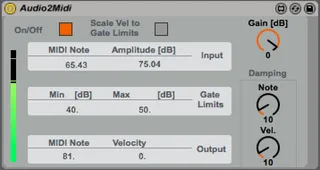
Audio2Midi - Audio to Midi
Audio To MIDI Audio2Midi picks the audio from the ch...
- Type
- Audio Effect
- Author
- iorobertob
- Version
- 1.0
- License
- None
- Live version
- 9.1.1
- Max version
- 7.2.4
- Downloads
- 8,401
- Updated
- 2016-08-26
Audio2Midi - Audio to Midi is an Audio Effect for Ableton Live by iorobertob, distributed as freeware, with no license specified by the author. It targets Live 9.1.1 and Max 7.2.4. On maxforlive.com it has 8,401 downloads. Published 2016-08-26. 9 user comments below.
New to Max for Live? Read what Audio Effects do, how device licenses work, how to install a device.
Description
Audio To MIDI
Audio2Midi picks the audio from the channel, finds the pitch using fiddle~ and then sends a MIDI message to a MIDI Device in a Midi Channel.
The MIDI receptor is included in the zip.
The fiddle~ object is also included in the frozen Device. It is a compiled version for Max and Ableton 64 bit. OSX.
The device sends a midi message every time it detects an attack. This can be dampened to modify the sensitivity to either pitch or gain changes that trigger a message.
Note this is yet another pitch detector, but this includes the fiddle~ for 64 bits that proved hard to find.
Pleas use and abuse to find ways to improve it.
https://iobridger.wordpress.com
Comments (9)
Is it possible to use it on win7? I paste Audio to midi device to mic chanel and midi receptor ti synth chanel but it don't work. Could you advice what i should to do next?
Thank's
Kuzma
I would not know if this works for win7, this is working here in OSX 10.11.6,
o, this is what I just did to set it up now:
1 Open Live
2 Drop an Audio2Midi.amxd device into an Audio Track.
3 Make sure there is audio input coming into the track, in this case it was my microphone.
4 Drop a MidiReceptor.amxd devide in a separate Midi Track.
5 Place any instrument or device that receives Midi numbers right after the MidiReceptor, so it turns the numbers into sounds.
6 Back in the Audio Track, you should be seeing the numbers in the Input section changing as the audio comes in. And you should also see an orange LED at the bottom right blinking everytime a midi message is sent. These messages are received in the Midi Track
7 Use the Gate Limits to threshold the levels of audio that will actually produce a midi signal.
8 Use the Damping knobs to control the amount of change that has to occur in the Note or Speed for it to trigger a new message.
This worked here, I am using Ableton Live Suite 9.1.1, Max 7.2.4, and OSX 10.11.6
If it still does not work, try opening the device and see if the fiddle~ object is active. It might be the case that because it is compiled for OSX it will not work in Win7.
Cheers!
Roberto
But unfortunately it still didn't work.
Anybody know where it is possible to find proper fftw3.dll for Win 7 64 and how I should install it correctly?
Thank's
Kuzma
I have the device inserted in an audio track and receiving audio, but no input/output is indicated. Latest Max 7.3.4 and Mac OS 10.10.5. The device is showing audio input levels--any help would be great! Thanks
DS
Thanks for sharing this device but I need some help!
I ve done everything as you described at the comment above but there is still not working...
I opened max editor of the Audio2midi device, and i realize that the object fiddle~ is colored like there is not such an object!
I m using the latest version of Live Suite and i m on a Mac...
What i should do?
Thanks a lot in advance!
Costas
You can find fiddle~ 64bit here:
https://cycling74.com/forums/64-bit-versions-of-sigmund-fiddle-and-bonk
https://github.com/v7b1/fiddle_64bit_version/releases
Within Ableton, M4L is located in the Resources folder, in there you will find Max and the external folder. You have to copy the fiddle~ 64bit file in there, in the msp folder ideally. Then this device will work.
I can't believe there isn't more devices that do this kind of stuff but at least this one still works for now with Live 12.