- Type
- Audio Effect
- Author
- invisijp
- Version
- 1.1
- License
- Commercial
- Live version
- 10.1.15
- Max version
- 8.1.4
- Downloads
- 0
- Updated
- 2021-01-29
MultiScratcher is an Audio Effect for Ableton Live by invisijp, distributed as a commercial (paid) device. It targets Live 10.1.15 and Max 8.1.4. First published 2020-07-13, last updated 2021-01-29. 13 user comments below.
New to Max for Live? Read what Audio Effects do, what the Commercial license means, how to install a device.
Description
v1.1 Released
Fixed the name of parameters.
Gumroad page ↓
https://gumroad.com/tonicvision
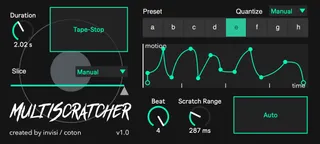
"MultiScratcher" is an audio effect type m4l device that simulates various DJ’s turntable techniques.
Tutorial movie is here. (sorry, only japanese)
https://youtu.be/37yAciMmSqw
Demo & Interview video ↓
https://youtu.be/aqeYi5IYG7w
More infomation is here↓
https://note.com/invisi_jp/m/mca2dbe30ff89
In addition to scratch processing, various functions are included such as slicing processing using a cross fader and reproducing the behavior that the rotation speed decreases when playback of the turntable is stopped.
Scratch Section
/Graph Editor
This editable graph expresses the scratch pattern with "horizontal axis: time" and "vertical axis: scratch movement".
/Scratch Range Dial
Specifies the maximum value for the vertical axis of the Graph Editor. The larger the number here, the scratch becomes more dynamic. The unit is millisecond.
/Beat Dial
Specify how many beats the scratch process will take.
/Preset Tab
You can select from 8 types of "a", "b"... "h". The information of the Graph Editor and Beat Dial is automatically saved.
/Auto Switch
When it is ON, each preset will perform scratch processing for the time specified by the Beat Dial, and continue switching randomly.
When it is OFF, scratch processing is performed at the timing when the preset is selected (clicked) on the Preset Tab.
/Quantize Menu
You can select from 7 of "Manual”, "4n (quarter note)”, "8n (8th note)", "16n (16th note)", "32n (32nd note)", "64n (64th note)", "8nt (8th note triplet) )”, "16nt (16th triplet)”.
The selected quantize will be applied when the Auto Switch is OFF.
Slice Section
/Preset Menu
You can select from 5 of "Manual", "Preset 1"... "Preset 4".
When you select one of the Preset modes, the slice switch information described below is automatically saved.
/Slice Fader
Displayed when Manual mode is selected. Not only can you operate the fader with the mouse and set automation, but you can also assign it to a MIDI controller and play it.
/Slice Switch
Displayed when any Preset mode is selected.
You can specify which note value should be sliced from 7 of "4n (quarter note)”, "8n (8th note)", "16n (16th note)", "32n (32nd note)", "8nt (8th triplet)", "16nt (16th triplet )”.
Tape Stop Section
/Tape Stop Button
When you press the button, the playback speed slows down and stops, just like when you stopped playing the turntable.
Press again to start playback.
/Duration Dial
You can set the number of seconds to stop playing when you press the tape stop button.
#m4l #abletonlive #maxmsp #sound #music #sounddesign
Comments (13)
This is definitely something I'm interested in and I'm happy to pay if it can do what I'm hoping it can do. Just need to see it in action first! :)
invisijp, is it possible to implement a random preset generator too? Even a feature so each time it plays through a cycle, it keeps making new curve arrangements? The end-result being that no two cycles sound the same.
Sorry, Only Japanese...
https://youtu.be/37yAciMmSqw
but, I'm sorry.
There are currently no plans to implement a random preset generator.
However, I would like to incorporate feedback as much as possible, so please wait for the update!
Please forgive me for the inconvenience. Also, thank you for your valuable opinions.
MIDI control functionality is currently being implemented and will be updated in the near future. Please wait for the release.
Regarding bugs, the bug you reported did not recur at all here. .. Could you tell us a little more about the situation?