GyroMapper-buggy
buggy -- see below GyroMapper takes the data from your iP...
- Type
- MIDI Effect
- Author
- NextStepDevices
- Version
- 1.0.2
- License
- AttributionShareAlike
- Live version
- 10.1.18
- Max version
- 8.1.5
- Downloads
- 327
- Updated
- 2022-11-23
GyroMapper-buggy is a MIDI Effect for Ableton Live by NextStepDevices, distributed as Creative Commons Attribution-ShareAlike. It targets Live 10.1.18 and Max 8.1.5. On maxforlive.com it has 327 downloads. First published 2021-02-25, last updated 2022-11-23. 2 user comments below.
New to Max for Live? Read what MIDI Effects do, what the AttributionShareAlike license means, how to install a device.
Description
buggy -- see below
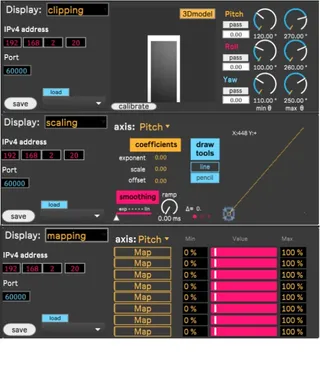
GyroMapper takes the data from your iPhone or iPad and brings it into Ableton Live, allowing you to map each axis of rotation to any live device's parameters. If a device parameter can be mapped to a macro control, it can be controlled by GyroMapper.
GyroMapper was intended for use by live electronic and electro-acoustic musicians, as well as a utility for producers who want to to automate parameters faster and more efficiently. Due to GyroMapper's customizability and the sensitivity of your phone's gyroscope sensor, it also has great potential for use in experimental music.
-- the option to map to ableton live parameters is not functioning, I do not currently have an Ableton license and cannot debug it. Feel free to pick through it for the relevant code it if you want, it should work fine up until the "mapping" bpatcher.
Comments (2)
If you have the newest version of Max, and the GyrOSC app.
Basically there's 4 steps:
1. Find your IP address.
On windows, you can find your IP address in
Settings-> Network & Internet -> WiFi
Then click on the WiFi network you are connected too, scroll down and there will be a list of "Properties"
the number you want is "IPv4 Address", and should be 4 numbers separated by dots.
As for Macs I'm not entirely sure, but here is a quick guide for both
https://www.avast.com/c-how-to-find-ip-address?v=b
The port number you choose doesn't really matter as long as it is "unoccupied". 60000 will almost certainly work.
2. Open the GyrOSC app, the first page should have a place to enter the Local IP address of the computer you are running Ableton on, and a Port number. (don't worry about "tag").
3. Enter these numbers in the corresponding places in the M4L device, on the left side.
4. Test it by looking at the "clipping" display, and moving your phone around.
Sorry for taking so long to reply, if you run through these steps and it still isn't working, open up the patch and open up the "debugger" subpatcher/check the console for errors. If they do show up and you're not sure what to do with them, feel free to email me at [email protected] and I will respond much quicker!!