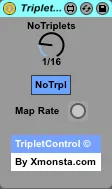
TripletControl
It has always annoyed me that its not possible to control tr...
- Type
- Audio Effect
- Author
- xmonsta
- Version
- 1.1
- License
- Attribution
- Live version
- 9.0.1
- Max version
- 6.1
- Downloads
- 5
- Updated
- 2014-07-29
TripletControl is an Audio Effect for Ableton Live by xmonsta, distributed as Creative Commons Attribution. It targets Live 9.0.1 and Max 6.1. On maxforlive.com it has 5 downloads. First published 2013-03-28, last updated 2014-07-29. 1 user comment below.
New to Max for Live? Read what Audio Effects do, what the Attribution license means, how to install a device.
Description
It has always annoyed me that its not possible to control triplets within Ableton. The beat repeat device allows you to turn them off, but you can't filter only triplets, or control triplets in all other instruments/effects. I just want to be able to automate the devices, without triplets getting in the way.
This free collection of devices allow you to filter out triplets, or choose only to play triplets. Just like the Beat Repeat device does in Ableton Live. It can be used with the following devices.
In 'Max Audio Effects' folder:
TC-AudioEffect (Controls Audio Effects)
Auto Pan
Auto Filter
Phaser
Flanger
FrequencyShifter
TC-BeatRepeat (Controls Beat Repeat Only)
In 'Max Midi Effects' folder:
TC-Arpeggiator (Controls Arpeggiator)
TC-Operator (Controls Operator LFO) - Requires Filters to be turned on in order to map
TC-Sampler (Controls Sampler LFO) - Requires Filters to be turned on in order to map
TC-Simpler (Controls Simpler LFO 1, 2 & 3) - Requires Filters to be turned on in order to map
TC-Analog (Controls Analog LFO 1 & 2) - Requires Filters to be turned on in order to map
It does this by latching onto the 'Rate' dial, when the rate is synced.
In order to use this device, it MUST be dropped exactly to the left of the audio effect you intend to use it on. There should be no other devices in-between TripletControl and the audio effect you want to use it on.
Most of the devices should map automatically, as long as they are to the left of the device in question. If the device doesn't have it's parameter initialised automatically (i.e. sampler, simpler etc.) it will require you to press the map button, in order to map the parameter.
If you drop the device to the left of the device you want to control, it should just map automatically. However, if you drop the ableton device to the right of the device, be sure to click the button for 'Map Rate' to ensure the Rate parameter is mapped.
Try not to separate the devices or move the device away from the Audio Effect. It needs to be to the left of the Audio Effect to work.
Dont forget to switch your audio effect (Auto Pan, Auto Filter etc) to Sync mode.
Disclaimer: There may be some latency in live, just like any other device that uses max for live to control parameters. However, this shouldnt stop you from having endless fun with this device.
Comments (1)
Is there no way you can just post the file here? or link to a page to directly download it?