- Type
- MIDI Effect
- Author
- Gross9978
- Version
- 1.1
- License
- AttributionNonCommercialShareAlike
- Live version
- 12
- Max version
- 8.6.2
- Downloads
- 375
- Updated
- 2025-05-02
PushSliders is a MIDI Effect for Ableton Live by Gross9978, distributed as Creative Commons Attribution-NonCommercial-ShareAlike. It targets Live 12 and Max 8.6.2. On maxforlive.com it has 375 downloads. First published 2024-05-16, last updated 2025-05-02. 1 user comment below.
New to Max for Live? Read what MIDI Effects do, what the AttributionNonCommercialShareAlike license means, how to install a device.
Description
1.1- Added support for Push3 Standalone.
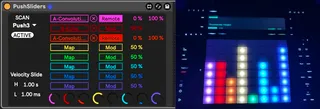
After loading the device you should be able to “Grab” control of your Push3. If you’re using Push2 or if Push3 isn’t recognized navigate to the SetUp page and choose your controller. After that you can “Grab” control of your Push from either the SetUp page or the Map page. Once initially Grabbed you can also grab/release by pressing the shift and select buttons at the same time.
Selecting another device, track or entering session view will release control of the Push, returning to note view or selecting the device will re”grab” the Push based on the last settings.
To map a control-
The Push needs to be “Grabbed” for mapping to work.
Make sure the Push has been “Grabbed” and navigate to the Map page.
Turn the dial to “Map” and select your chosen other device/parameter. When you reselect the device the “Map” bank will be renamed to the parameter you’ve chosen as an indication the mapping was successful.
Selecting “UnMap” will, surprise, unmap the parameter and return the bank name to “Map”.
There are controls for Mod type- Mod/Remote, Mod Polarity,-Bipolar/Unipolar, Mod amount and Range depending on the Mod type selected
PushSliders gives the Push2/3 8 Velocity sensitive faders that can be mapped to control parameters in Live with controls for how the velocity affects the slide time. It's similar to the way a LaunchPad controls parameters in Live.
The bulk of the Push interface is from a tutorial by Darwin Grosse that is worth a read if you're into that sort of thing.Link in the URL
Comments (1)